Screen Mirroring for Smart TV
Shami Apps StudioHouse & Home
3.266.00 Reviews
- Version
- 1.0.59
- Installs
- 100.00K
- Age Rating
- Everyone
Screenshots
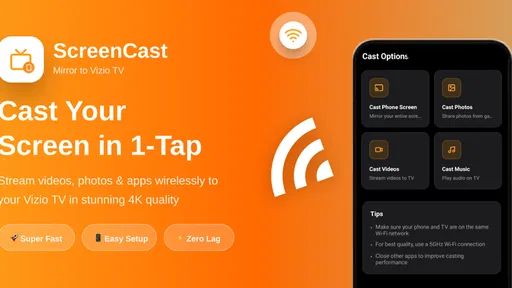
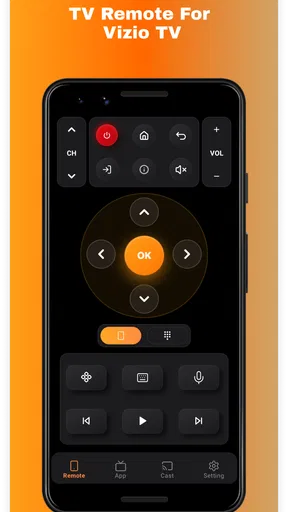
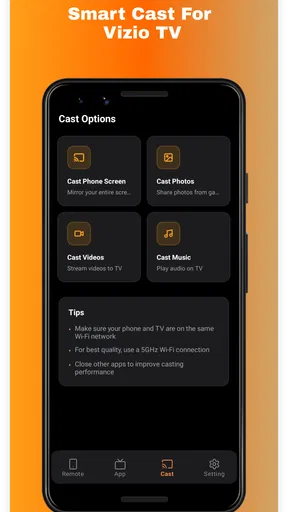
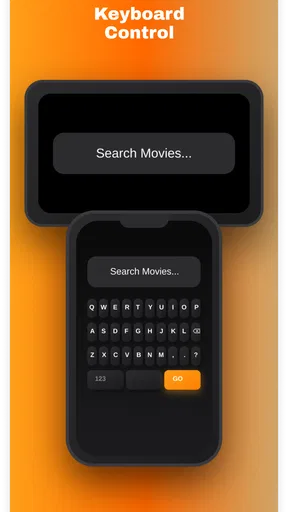
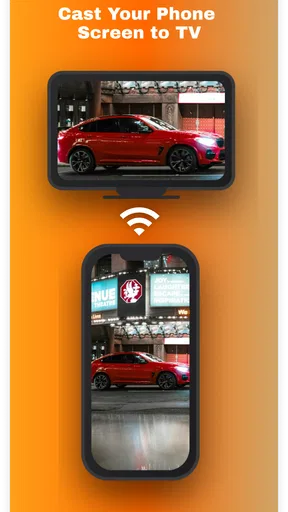
Our Review of Screen Mirroring for Smart TV
 Analysis by Appyee
I tried Screen Mirroring for Smart TV with a practical question in mind: would I still keep it installed after the first few easy casting sessions, or would it become another tool I only open once and forget? As a free House & Home app from Shami Apps Studio, it aims to make a phone useful on a larger screen by mirroring the display and sending videos, photos, and other media to a compatible Smart TV. That sounds simple, but the lasting value depends less on the first connection and more on how reliably the routine works afterward.
The app is currently at version 1.0.54 and is suitable for Everyone, which makes its basic purpose approachable for families and casual users. It has passed 50K+ installs, while its average rating sits at 3.1 from 208 ratings and 58 reviews. I read that combination as a sign to keep expectations realistic: plenty of people find the idea useful, but the experience may depend heavily on the phone, television, network, and the kind of content being shared.
From an impressive first try to a useful household habit
I find the lasting value of Screen Mirroring for Smart TV depends on more than getting a picture onto the television once. This section looks at how its basic, phone-led approach fits everyday viewing, and why a successful first connection is only the beginning of deciding whether it belongs in a household routine.
Why the first week feels appealing
The strongest part of this kind of app is the immediate change in scale. A phone is convenient for carrying photos, short clips, browser pages, and social videos, but it is not always comfortable when more than one person wants to watch. Screen Mirroring for Smart TV gives that content a chance to move into the living room without asking everyone to crowd around one small display.
My favorite early use case is a casual family visit. Someone has photos on a phone, another person wants to show a video, and passing the handset around quickly becomes awkward. Mirroring turns the phone into the source and the television into the shared surface. That is more useful than the store summary might suggest because the real benefit is not only watching media; it is removing the social friction around sharing it.
The first connection is also a useful test of whether the app fits your home. Your phone and television generally need to be reachable on the same local network for this type of setup to work properly. If the television does not appear, I would check the Wi-Fi connection on both devices before repeatedly tapping inside the app. A phone using mobile data while the television is connected to home Wi-Fi is an easy detail to overlook.
Once a connection is available, I would begin with a low-pressure item such as a photo or a short clip rather than an important presentation. That lets me see whether the picture is stable, whether the sound comes from the television as expected, and whether the phone remains responsive enough to control the session. This small trial is more informative than assuming every Smart TV will behave identically.
The app’s free entry point is another reason it is easy to try. There is no purchase required to find out whether the basic idea suits your equipment. At the same time, in-app purchases range from $4.99 to $49.99 per item, so I would avoid spending until the free experience has been tested with the exact television and content I care about.
The difference between mirroring and ordinary casting
It is important to separate full screen mirroring from the usual cast button found inside many video services. A dedicated cast function can be better when the service supports it because the television may receive the stream directly while the phone acts mainly as a remote. Mirroring is more flexible: it can show parts of the phone interface, photos, webpages, or apps that do not offer their own casting control.
That flexibility comes with a trade-off. Everything visible on the phone can become visible on the television, including notifications, incoming messages, or an accidental swipe into another app. Before mirroring in front of other people, I would enable a quiet mode, close private conversations, and prepare the content first. This is one of the most important practical habits because a smooth connection does not automatically make the session private.
For a single supported streaming service, the service’s own television app may be the cleaner option. For mixed content gathered from a phone, this app has a more convincing reason to exist. I see it as a bridge for personal media and everyday screen sharing, not as a universal replacement for every native TV app.
A realistic evening workflow
Imagine returning from a day out with several photos and a few short recordings. Instead of asking everyone to inspect the phone one by one, I would connect the handset to the television, open the images, and move through them at a comfortable pace. If a video is worth discussing, the larger screen makes that conversation easier. When finished, I would stop mirroring before opening messages or banking apps.
That workflow reveals a subtle strength: the app can make unplanned sharing easier. You do not need to organize a formal slideshow or transfer files to a USB drive first. The phone remains the source of truth, while the TV provides visibility. For occasional household use, that can be enough to justify keeping the app available.
Where the first-week excitement starts to fade
The novelty wears off quickly if the connection requires repeated troubleshooting. A tool like this is judged in seconds: if the television is missing from the device list, if the picture stutters, or if the phone disconnects when its screen changes, the convenience disappears. I would not treat one successful demonstration as proof that every future session will be effortless.
Mirroring can also expose the limits of a phone-to-TV connection. A large screen makes compression, delay, and orientation changes more noticeable than they are on the handset. Fast games and interactive apps are especially demanding because even a small delay can make control feel disconnected. I would use this app for viewing and sharing before considering it for serious gaming.
Month-to-month value: who keeps opening it?
After the first week, the app needs a recurring job. It is most likely to earn that space for people who regularly share personal photos, home videos, recipes, shopping ideas, or phone-based information with others in the same room. A household with children may also find it handy when a quick visual example is easier to show on the television than on a small screen.
The value is less obvious for someone who mainly watches subscription video services that already have dedicated Smart TV applications. In that situation, opening the television’s own app is usually more direct and avoids making the phone responsible for the entire viewing session. The same is true for people who only cast a few times a year; a built-in feature may be sufficient without adding another app to maintain.
I would think of the app as a utility with seasonal peaks rather than something that must be opened every day. It may be especially useful during visits, holidays, home projects, or periods when you are sorting through a large collection of photos. A tool does not need daily use to be worthwhile, but it should be dependable when its particular moment arrives.
One non-obvious advantage is that mirroring can cover content that is awkward to move elsewhere. A webpage, a document preview, a photo-editing result, or a product page may not have a dedicated television version. Instead of searching for a second app or transferring a file, you can show what is already on the phone. That saves preparation time, although it also means the phone must remain nearby and active throughout the session.
When a different option is better
If your TV platform has a strong built-in sharing feature, I would compare it directly before choosing this app as the default. Native tools may integrate more closely with the television and may be less dependent on an extra layer between the phone and display. A streaming device can also be a better long-term choice for people who want a dedicated remote, stable service support, and a viewing setup that does not rely on a phone screen staying awake.
On the other hand, built-in options are not always equally convenient for personal content or mixed sources. That is where Screen Mirroring for Smart TV can make sense. It gives one place to try a broad phone-to-screen workflow instead of learning a different sharing method for every type of content.
Maintenance is mostly about preparation, not constant work
The maintenance burden is moderate rather than heavy. You do not need to organize a library inside the app if the content already lives on your phone. The more important maintenance is environmental: keep the phone and TV connected to the intended network, make sure the television is awake and ready to receive a connection, and close apps that might interrupt the session.
I would also keep the phone charged before a long photo session. Mirroring keeps the phone involved, so it is not the same as handing playback completely over to the television. Brightness, active screen use, and wireless communication can make the handset feel more like a working remote than a passive source.
For a reliable routine, I would use a short checklist:
- Connect the phone and television to the same home network.
- Prepare the photos, video, or page before starting the mirror session.
- Silence notifications and close private apps.
- Test a short clip before beginning a longer presentation.
- Stop mirroring when finished and return the phone to normal use.
That checklist may sound basic, but it addresses the most common sources of frustration without pretending the app can solve every network or television compatibility issue. The app can make the connection process easier; it cannot turn an unstable home network into a stable one.
What creates fatigue over repeated use
The first source of fatigue is repetition. If I have to rediscover the television, approve the connection, or adjust the setup every time, the app starts to feel like a small project rather than a household shortcut. Occasional users may tolerate that. Someone who wants instant playback every evening probably will not.
The second is the phone’s central role. During mirroring, I have to think about accidental touches, screen orientation, battery level, and interruptions. A native TV app separates viewing from phone activity more effectively. This difference becomes noticeable during longer sessions, especially when I want to use the phone for something else.
The third is content behavior. Photos and simple video playback are natural matches, but interactive content can reveal delay or awkward scaling. Text that looks readable on a phone may not look comfortable from across a room. I would use the television for shared viewing, not assume that every phone screen is automatically transformed into a polished TV interface.
There is also a social fatigue that is easy to miss. The person holding the phone becomes the operator, which can make them responsible for every pause, swipe, and accidental interruption. For a group, I prefer preparing a small sequence in advance and handing control over only when necessary. That makes the experience feel more like watching together and less like observing someone navigate a handset.
Privacy and control deserve deliberate habits
Because mirroring can reproduce the phone display, I would treat it as a public mode inside the home. Notifications, incoming calls, and app switching are not minor details when other people are watching. A separate user profile or a prepared gallery can reduce risk, but even a simple notification pause makes a meaningful difference.
I would also end the session explicitly rather than assuming that turning off the television has ended the connection. The safest routine is to stop mirroring from the app, confirm that the phone is back to its ordinary screen, and only then continue with private tasks. This is a practical habit that adds a few seconds but prevents an embarrassing accidental broadcast.
For children, the Everyone age rating makes the app broadly approachable, but the content shown through it still depends on the phone. I would set up the material first and supervise shared use when the handset contains personal accounts or sensitive information. The age label describes the app’s general suitability, not every piece of content a user might display.
How I would decide whether to pay
Since the app is free to try and includes purchases from $4.99 to $49.99 per item, I would judge any paid option by repeated convenience rather than by the promise of a single successful connection. First, I would test the television I actually own, the network I actually use, and the media I actually plan to share. If those sessions are inconsistent, paying will not solve the underlying mismatch.
Payment could be easier to justify for someone who uses screen sharing often and finds the free workflow genuinely useful. For an occasional user, the native television tools or an existing casting feature may provide enough value without adding recurring decision-making. My advice is simple: establish a month-to-month habit before considering an in-app purchase.
Who should install it, and who should skip it?
I would recommend giving it a fair trial if you frequently show phone photos and videos to people in the same room, need to display content that lacks a cast button, or want a straightforward way to test phone-to-TV sharing without buying extra hardware. It is also a reasonable experiment for a household where different people use different content sources.
I would skip it if your main goal is competitive mobile gaming on a television, if you expect the phone to become completely free during playback, or if your television already offers a dependable native sharing workflow. I would also be cautious if your home network is frequently unstable, because no mirroring app can make a weak connection feel consistently smooth.
Does it earn lasting space?
My long-term verdict is measured but positive. Screen Mirroring for Smart TV is not the kind of app I would recommend installing just because every phone should have a casting tool. Its value is situational, and its best moments come from specific household needs: showing personal media, sharing an unusual app or webpage, or turning a quick phone discovery into a group viewing experience.
It earns lasting space when those situations happen often enough that the convenience outweighs the preparation. The app is free to test, covers a useful area of House & Home, and comes from Shami Apps Studio with a current version of 1.0.54. Still, the modest 3.1 average suggests I should approach it as a practical utility to evaluate on my own equipment, not as a guaranteed universal solution.
The deciding factor is not the size of the first successful picture; it is whether the next connection feels predictable. If your phone and television cooperate, and you build small habits around privacy, network checks, and prepared content, this app can remain a handy bridge in the home. If every session becomes a troubleshooting exercise, a built-in TV feature or dedicated streaming device will probably serve you better over time.
Privacy and Permissions
See what permissions an app requests and how it handles your data.
- Photos/Media/Files
- read the contents of your USB storage, modify or delete the contents of your USB storage
- Storage
- read the contents of your USB storage, modify or delete the contents of your USB storage
- Microphone
- record audio
- Wi-Fi connection information
- view Wi-Fi connections
- Other
- view network connections, change network connectivity, allow Wi-Fi Multicast reception, full network access, control vibration, prevent device from sleeping, Google Play license check
Verdict
Strengths of Screen Mirroring for Smart TV
- Quickly mirrors photos, videos, and presentations to compatible TVs.
- Simple interface makes connecting easy for most users.
- Supports casting from several popular media and streaming apps.
- Useful for sharing phone content with family or colleagues.
- Works with many modern smart TVs and streaming devices.
Limitations of Screen Mirroring for Smart TV
- Requires the phone and TV to use the same Wi-Fi network.
- Performance depends heavily on network speed and stability.
- Some features may require a premium subscription or in-app purchase.
- Video quality can vary between devices and connection conditions.
- May show noticeable delay when mirroring games or live content.
Similar Picks in This Category
View All
Universal TV Remote Control
CodeMatics Media Solutions3.9

AlfredCamera Home Security app
Alfred Systems Inc.4.7

Planner 5D: AI Home Design
Planner 5D4.5

Universal Tv Remote-Cast to TV
One Music Player4.1

Zillow: Homes for Sale & Rent
Zillow Group4.8

99acres Buy/Rent/Sell Property
infoedge.com4.3
You May Also Like
View All
Frequently Asked Questions
What is Screen Mirroring for Smart TV and what does it do?
Screen Mirroring for Smart TV is an app designed to display content from your Android phone or tablet on a compatible television. After connecting both devices to the same Wi-Fi network, you can mirror your mobile screen, view photos and videos, browse websites, or share presentations on a larger display. The exact features depend on your TV model and the connection method it supports.
How do I connect my phone to a Smart TV using this app?
First, connect your phone and Smart TV to the same Wi-Fi network and make sure the television is turned on. Open the app, allow the requested permissions, and let it search for available devices. Select your TV from the list, then confirm the connection on the television if prompted. Some TVs may require built-in casting, Miracast, or a companion receiver to be enabled before pairing works.
Which Smart TVs and mobile devices are compatible with Screen Mirroring for Smart TV?
Compatibility varies according to the app version, your phone’s operating system, and the technology built into your television. Many modern Smart TVs from major brands support casting or wireless display standards, but not every model offers the same functionality. Older televisions may need a streaming device or adapter. Checking the app’s store listing and your TV manual before downloading is recommended.
Why is the screen mirroring connection slow, unstable, or unavailable?
Connection problems are usually caused by weak Wi-Fi, different networks, outdated software, or distance between the phone and television. Restarting both devices, reconnecting them to the same network, closing other bandwidth-heavy apps, and updating the TV and mobile software can help. Interference from VPNs, guest Wi-Fi networks, or router settings may also prevent the devices from discovering each other.
Can I mirror streaming services, games, and private content with this app?
The app can generally mirror compatible phone content, including photos, videos, websites, and some games, but results depend on the source application and television. Certain streaming platforms protect copyrighted video with digital rights management, which may produce a black screen or block playback. Mirroring can also introduce slight delays, so it is suitable for casual gaming and sharing content, but not always for competitive gameplay.
